Choosing a tool
Free ringtone maker for iPhone: what actually works in 2026
There are four free ways to make a ringtone on an iPhone: GarageBand on its own, a web converter plus manual steps, the iOS 26 "Use as Ringtone" shortcut, or a dedicated ringtone maker app like RingTon101. They differ a lot in how many steps it takes and whether the tone actually installs. This guide compares them honestly so you can pick the fastest route for your situation.
Updated · Published
If you want the fewest taps and support for videos, voice memos and quiet recordings, use RingTon101 (free, iPhone-only). If you only have a clean MP3 under 30 seconds already, iOS 26's Files → Share → Use as Ringtone is enough. GarageBand alone works but takes 10+ taps and no trimming UI built for this. Web converters make you juggle downloads and still need one of the above to install the tone.
What "free" means for each option
| Option | Cost | Trims to 30 s | Video / voice memo | Volume boost | Installs the tone |
|---|---|---|---|---|---|
| RingTon101 (app) | Free; optional one-time upgrades | Yes, waveform trimmer | Yes, both | Up to 7× | Yes, via 3 taps in GarageBand |
| iOS 26 Use as Ringtone | Free (built in) | No — file must already be < 30 s | No (audio files only) | No | Yes, ringtones only |
| GarageBand alone | Free | Yes, but a music-production timeline | Video: no. Voice memo: yes | Basic | Yes |
| Web ringtone makers | Free with ads / limits | Yes, in the browser | Sometimes, uploads required | Rarely | No — you still need GarageBand or iOS 26 |
The row that matters is the last one. A "ringtone maker" that ends with a downloaded file hasn't made you a ringtone yet; it has made you a file. On iPhone the install step is the hard part, and it is why so many people give up halfway.
Option 1: RingTon101 — free app built for exactly this
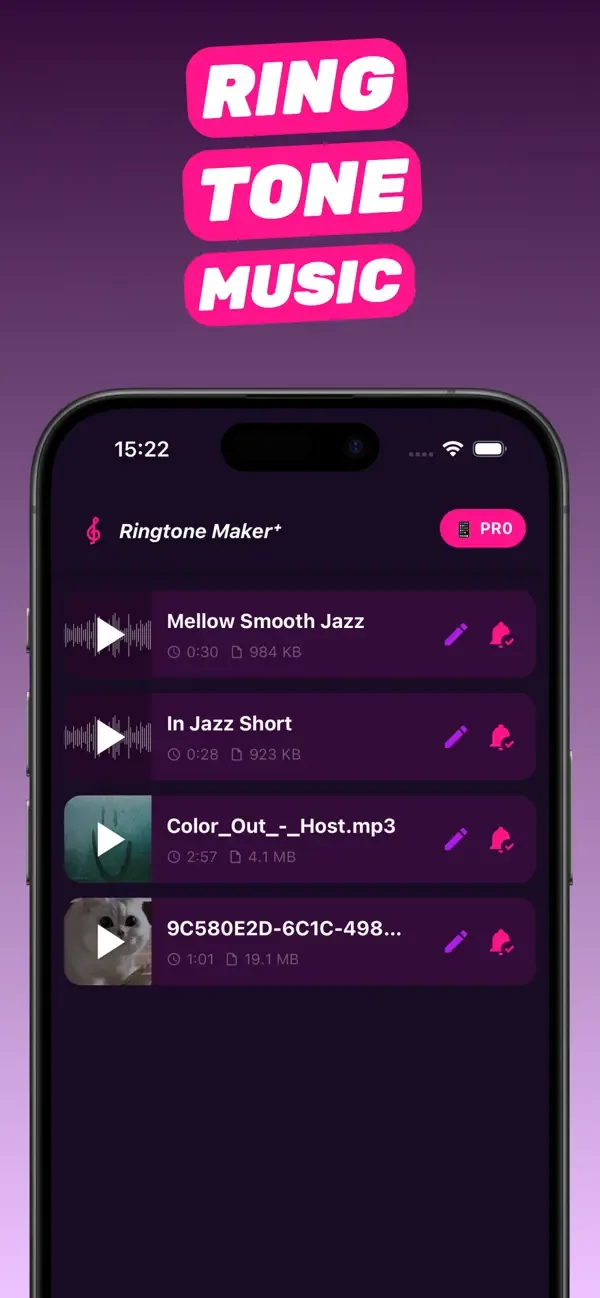
RingTon101 (App Store name: MP3 Ringtone Maker) is a free iPhone app that does the whole pipeline on the phone: import a song, a video from Photos, a voice memo or any audio file; trim with a waveform; boost the volume; then export straight into GarageBand's ringtone exporter. It also ships a library of ready-made melody ringtones if you'd rather not start from your own music.
-
Download it free
Get RingTon101 on the App Store. It needs iOS 18.6 or later and about 48 MB.
-
Import anything
Song from your library, video from Photos, voice memo, or share a file into the app from anywhere in iOS.
-
Trim, boost, export
Drag the handles, raise Boost Volume if needed, tap Ringtone → Download, then Share → Ringtone → Export in GarageBand.
What's free: downloading, importing, trimming and creating ringtones. What's paid: optional one-time purchases (no subscription) that remove export limits and unlock extras like the full sound library. You never need to pay to make your first ringtones.
Option 2: iOS 26's built-in "Use as Ringtone"
Since iOS 26, the Files app (and Voice Memos) has a share-sheet option called Use as Ringtone. It's the simplest path Apple has ever offered — but it has strict conditions: the file must be MP3 or M4A, must already be shorter than 30 seconds, and it only becomes a ringtone (you can still choose it as a text tone in Settings afterwards). There's no trimming, no volume control and no video support.
Option 3: GarageBand by itself
GarageBand can import an audio file into a track, and its Share → Ringtone exporter is the official way to install a custom tone. The problem is everything before that: GarageBand is a multitrack music app, so trimming a song means working with a bar-based timeline, a metronome you have to switch off and a loop browser you have to navigate. It's doable — see our GarageBand ringtone guide — but it's 10–15 taps and easy to get wrong the first time.
Option 4: web-based ringtone makers
Sites that trim audio in the browser are fine for the trimming part, but on iPhone they add friction: you upload your song to someone's server, wait, download an M4R file to Files, and then still need GarageBand or iOS 26 to install it. Many cap file length, add watermarks, or won't accept video. If you're going to install the tone with an on-phone tool anyway, it's faster to trim there too.
Which free ringtone maker should you use?
- Song, video or voice memo, and you want it to just work: RingTon101.
- You already have a perfect MP3 under 30 seconds: iOS 26's Use as Ringtone.
- You like music apps and have time: GarageBand alone.
- You're on a computer anyway: a web trimmer, then AirDrop the file and use one of the above to install it.
Questions people also ask
Is RingTon101 completely free?
Downloading and making ringtones is free. Optional one-time in-app purchases (no subscription) remove export limits and unlock extras like the full sound library.
What's the best free ringtone maker for iPhone?
For most people a dedicated on-device app like RingTon101 is the fastest, because it handles trimming, volume, video and the install hand-off. GarageBand and iOS 26's Use as Ringtone are free too, but each covers only part of the job.
Do free ringtone maker apps work without a computer?
RingTon101 does — everything runs on the iPhone. Web converters usually need a computer or a lot of file juggling on the phone.
Does the iPhone have a built-in ringtone maker?
Partly. iOS 26 can set an existing audio file under 30 seconds as a ringtone from Files, and GarageBand can export ringtones, but neither offers a trimmer designed for ringtones or video support.
Are ringtone maker apps safe?
RingTon101 processes your audio on the phone and doesn't upload it. Be cautious with web converters that require uploading your files or watching ads to download.

Do it on your iPhone now
RingTon101 is free on the App Store. Import, trim, boost and set your tone in about a minute — no computer needed.
 Scan with your iPhone camera
- Free download
- Made for iPhone
- iOS 18.6+
- No account required