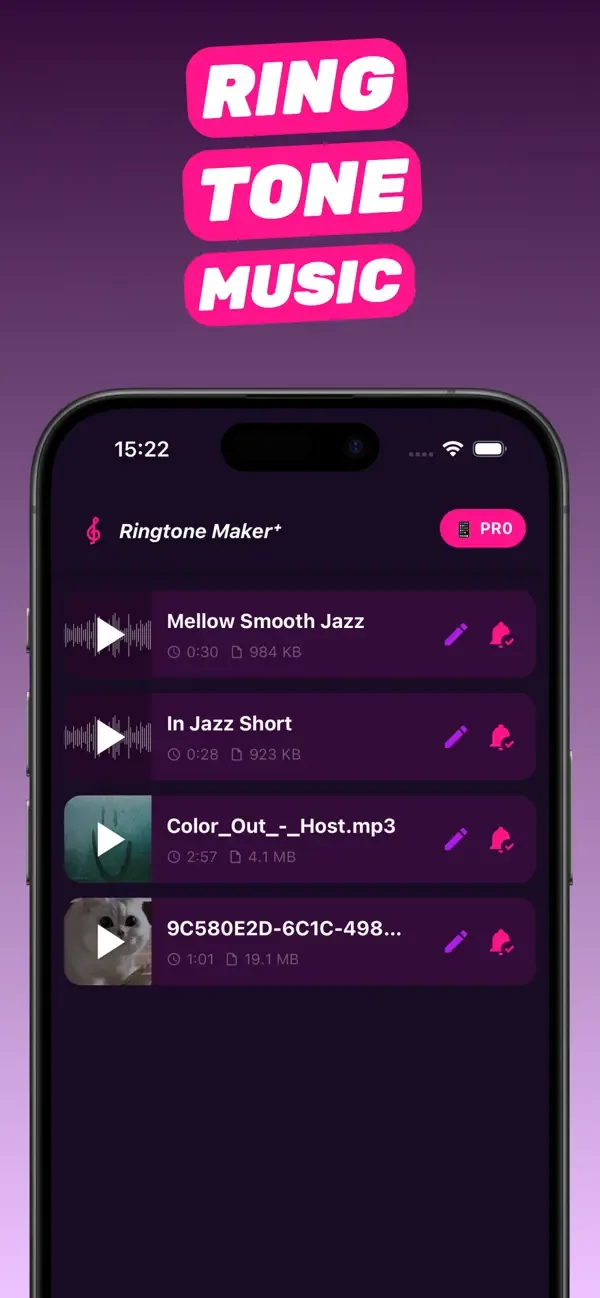
App walkthrough
How to use Ringtone Maker on iPhone: complete walkthrough
RingTon101 (App Store name: MP3 Ringtone Maker) has one job: get a piece of audio from anywhere on your iPhone into Settings as a ringtone, text tone or alarm. This walkthrough goes screen by screen — importing, the sound library, the trimmer, Boost Volume and quality, the export formats, and saved projects — so you know exactly what every button does and which choice to make.
Updated · Published
Import → trim with the yellow handles → (optional) Boost Volume → Ringtone → Download → GarageBand Share → Ringtone → Export → choose it in Settings → Sounds & Haptics.
Requirements and what's free
- Device: iPhone running iOS 18.6 or later (iOS 26 supported). iPhone-only; about 48 MB.
- Price: free to download and make ringtones. Optional one-time purchases (no subscription) unlock unlimited exports and extras such as the full sound library. The PRO badge in the app marks those.
- Also needed: GarageBand (free, by Apple) for the final export step.
- Languages: 29, including English, Spanish, German, French, Italian, Japanese, Korean, Portuguese, Russian, Turkish and Ukrainian.
- Privacy: audio is processed on the phone; nothing is uploaded.
Importing: four ways to get audio in
-
Music library
Tap Import → Music to browse songs on the phone. Streamed Apple Music tracks are DRM-protected and appear greyed out; purchased and downloaded non-DRM songs work.
-
Videos from Photos
Import → Photos, or open the video in Photos and Share → Ringtone Maker. The audio track is extracted automatically.
-
Files
Import → Files for MP3, M4A, WAV, AAC or AIFF in iCloud Drive, Downloads or any cloud provider. Tap a cloud file once to download it first.
-
Share sheet from anywhere
Voice Memos, Mail, Messages, WhatsApp, Safari downloads: tap Share and choose Ringtone Maker. If it's hidden, tap More and enable it.
The sound library
Don't have a song in mind? The Library tab has ready-made melody ringtones sorted by style — Instrumental, Electronic, Classic, Jazz and more. Tap play to preview, the heart to favorite, the pencil to open it in the trimmer, or the bell to export it as-is. Some library sets are part of the optional upgrade.
The trimmer
The trimmer shows a waveform (or video frames) with two yellow handles. Drag them to set the start and end; the times are shown underneath. Tap play to preview the selection. Rules of thumb:
- Ringtone / alarm: up to 30 seconds — the app won't let you go over, because iOS rejects longer tones.
- Text / notification tone: 2–10 seconds.
- Start half a second before the beat you want so the first ring isn't silent.
- Trim / Restore: Trim commits the selection; Restore brings back the full source if you change your mind.
Boost Volume and Improve quality
Boost Volume (1× to 7×) raises the level of the whole clip. Songs rarely need more than 1–2×; voice memos, phone videos and screen recordings often need 3–7×. If you hear crackling, back off a notch. Improve quality is an experimental enhancer for muddy or low-bitrate sources — try it on, listen, and turn it off if you don't like the result.
Export formats: Ringtone, Song, Project
| Format | What you get | Use it for |
|---|---|---|
| Ringtone | AAC/M4R clip, opened in GarageBand for the Share → Ringtone → Export step | Ringtones, text tones, alarms, per-contact tones |
| Song | A trimmed audio file to save to Files or share | MP3 cutter use, iOS 26 Use as Ringtone, sending to friends, Telegram custom sounds |
| Project | A GarageBand project | If you want to keep editing in GarageBand (add effects, layer tracks) |
For a normal ringtone choose Ringtone, tap Download, then in GarageBand tap Share → Ringtone → Export and pick Standard Ringtone, Standard Text Tone or Assign to contact. The tone is now in Settings → Sounds & Haptics.
Projects: every tone is editable later
Everything you make is kept in the Projects list with its length and size. From there you can play it, tap the pencil to re-trim or re-boost, or tap the bell to export it again — useful when you want the same song as a 30-second ringtone and a 3-second text tone, or when you switch phones and need to reinstall tones.
Setting the tone in iOS
- Calls: Settings → Sounds & Haptics → Ringtone.
- Texts: Settings → Sounds & Haptics → Text Tone.
- One contact: Contacts → person → Edit → Ringtone / Text Tone.
- Alarm: Clock → Alarm → Sound → Ringtones.
- Mail, Calendar, Reminders, Voicemail: their rows under Sounds & Haptics.
Questions people also ask
Is Ringtone Maker free to use?
Yes — download, import, trim and create ringtones for free. Optional one-time purchases unlock unlimited exports and extras. No subscription is required.
What iOS version does it need?
iOS 18.6 or later, including iOS 26. iPhone only.
Why do I need GarageBand?
iOS only lets Apple's own apps install custom tones. RingTon101 prepares the clip; GarageBand's Share → Ringtone → Export installs it in three taps.
Does it upload my music?
No. Importing, trimming, boosting and exporting all happen on the phone.
Can I edit a ringtone after I made it?
Yes. Open it from the Projects list, adjust, and export again.

Do it on your iPhone now
RingTon101 is free on the App Store. Import, trim, boost and set your tone in about a minute — no computer needed.
 Scan with your iPhone camera
- Free download
- Made for iPhone
- iOS 18.6+
- No account required