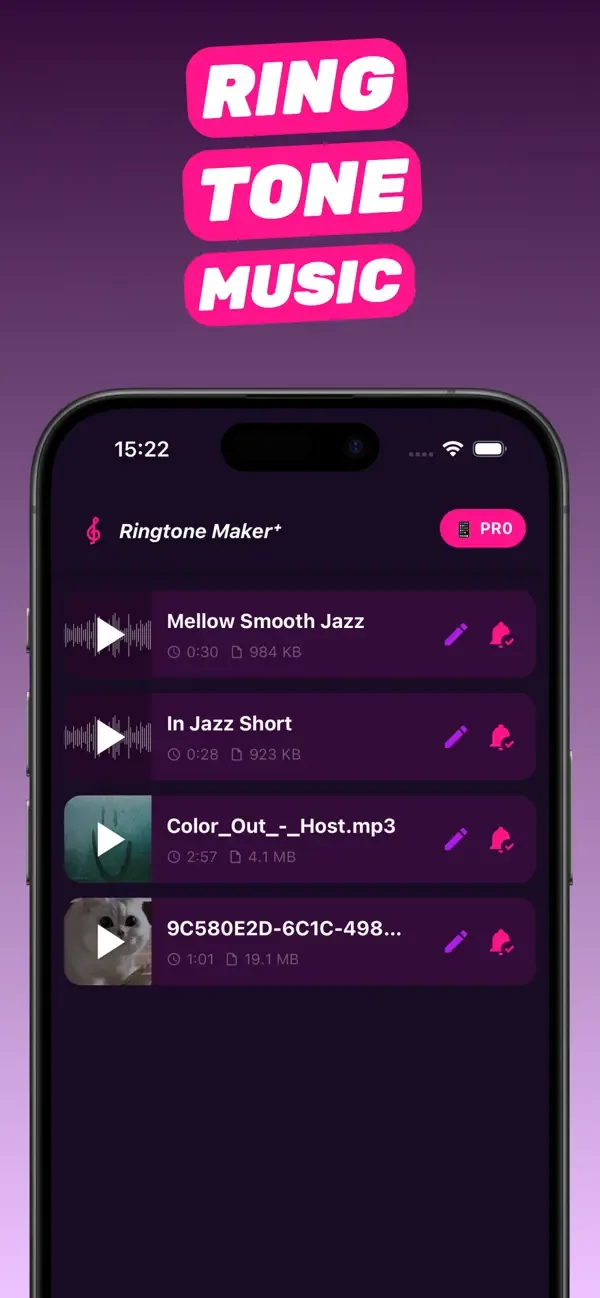
MP3 → iPhone
MP3 ringtone maker: convert any MP3 to an iPhone ringtone
An MP3 can't be used as an iPhone ringtone as-is: iOS wants a 30-second AAC file with the .m4r extension. An MP3 ringtone maker does that conversion for you — and the on-phone way is to import the MP3 into RingTon101, trim it, and export. No renaming files, no iTunes, no desktop converter. Here's the process, plus how to handle MP3s that are in email, iCloud Drive, WhatsApp or a ZIP.
Updated · Published
Save the MP3 to Files → open RingTon101 → Import → Files → pick the MP3 → trim to ≤ 30 s → Ringtone → Download → GarageBand Share → Ringtone → Export. The app converts MP3 → M4R automatically.
Why an MP3 needs converting (M4R explained)
iPhone ringtones are AAC audio inside an MPEG-4 container with the file extension .m4r. It's the same format as an M4A song, just renamed so iOS treats it as a tone, and it must be 30 seconds or shorter. An MP3 is a different codec entirely, so something has to decode it and re-encode it as AAC. That's what an mp3 ringtone maker does — and the old "rename .m4a to .m4r" trick only works if you already have an AAC file, which most downloads aren't.
RingTon101 accepts MP3, M4A, WAV, AAC, AIFF and the audio track of common video formats, and outputs a ringtone-ready file every time. You never touch extensions.
Step 1: get the MP3 onto your iPhone
The MP3 needs to be somewhere iOS can open it. Any of these work:
- Files / iCloud Drive / Downloads: already there? Skip ahead.
- Email or Messages attachment: tap the file, tap Share, then Save to Files — or share it straight to Ringtone Maker.
- WhatsApp / Telegram: open the audio, tap Share → Save to Files.
- From a computer: AirDrop the MP3 to the iPhone (it lands in Files), or put it in iCloud Drive / Dropbox / Google Drive and download it in the Files app.
- Inside a ZIP: tap the ZIP in Files to extract it, then open the folder.
Step 2: MP3 to ringtone in RingTon101
-
Import from Files
Open RingTon101, tap the import button and choose Files. Browse to the MP3 and select it. (Or long-press the MP3 in Files → Share → Ringtone Maker.)
-
Cut the best 30 seconds
Drag the yellow handles on the waveform. The app enforces the 30-second maximum so your export won't be rejected. Preview and adjust until it starts exactly where you want.
-
Fix the volume
Many MP3s from the web are quiet or inconsistent. Raise Boost Volume (up to 7×) and, if the file sounds muddy, try the Improve quality toggle.
-
Export as Ringtone
Tap Ringtone → Download. The app converts the MP3 clip to AAC/M4R and opens GarageBand.
-
Install it
In GarageBand: Share → Ringtone → Export, then choose Standard Ringtone, Standard Text Tone or Assign to contact. Find it under Settings → Sounds & Haptics.
The 30-second rule (and text-tone lengths)
iOS rejects ringtones longer than 30 seconds — silently, which is why some people export and then can't find the tone in Settings. Text tones and notification sounds have no hard cap but should be 2–10 seconds so they don't play over your next notification. Alarms use ringtones and simply loop the 30-second clip.
Using it as an MP3 cutter (not just for ringtones)
The same trimmer works as a plain MP3 cutter: choose the Song format instead of Ringtone when you export, and you get a trimmed audio file you can save to Files or share. Handy for cutting a sample, shortening a voice recording or making a loop.
Troubleshooting MP3 imports
The MP3 won't import
Check it's really an MP3 and not a DRM-protected file (e.g. something exported from a streaming app). Also make sure it's downloaded, not just a cloud placeholder — in Files, tap it once so the cloud icon disappears.
The ringtone sounds distorted after boosting
Lower Boost Volume a notch; very compressed MP3s clip when boosted too far. 2–3× is usually plenty.
GarageBand says the file is too long
Re-open the project and make sure the selection is under 30 seconds, then export again.
Questions people also ask
Can I use an MP3 as an iPhone ringtone?
Yes, after converting it to a 30-second M4R (AAC) file. RingTon101 does the conversion on the phone when you export a trimmed MP3 as a Ringtone.
How do I convert MP3 to M4R on iPhone without a computer?
Import the MP3 into RingTon101 from Files, trim it, tap Ringtone → Download and finish the export in GarageBand. The M4R conversion happens automatically.
Why is my ringtone limited to 30 seconds?
iOS caps ringtones at 30 seconds. Longer files are rejected without a message, so RingTon101's trimmer stops at the limit.
Does RingTon101 work as an MP3 cutter?
Yes. Export with the Song format to get a trimmed audio file instead of a ringtone.
What audio formats can I import?
MP3, M4A, AAC, WAV, AIFF and the audio from common video files such as MP4 and MOV.

Do it on your iPhone now
RingTon101 is free on the App Store. Import, trim, boost and set your tone in about a minute — no computer needed.
 Scan with your iPhone camera
- Free download
- Made for iPhone
- iOS 18.6+
- No account required