GarageBand
GarageBand ringtone maker: the easy way to make a ringtone on iPhone
GarageBand is the app Apple lets install custom ringtones on iPhone, so every "make your own ringtone" method ends up there. The hard part isn't the export — it's trimming a song in a multitrack music app that was never designed for ringtones. This guide shows both routes: the full manual GarageBand method, and the faster combo where RingTon101 does the importing, trimming and volume, and GarageBand does its three-tap export.
Updated · Published
Trim the song in RingTon101, tap Ringtone → Download and it opens in GarageBand. There, tap Share → Ringtone → Export and choose Standard Ringtone. That's the entire GarageBand part.
Why GarageBand is involved at all
iOS sandboxes ringtones: third-party apps can create the audio, but only Apple's own tools can register a file as a tone the phone will offer in Settings. Before iOS 26 that meant iTunes/Finder syncing or GarageBand's Share → Ringtone; since iOS 26 there's also Use as Ringtone in Files for clips already under 30 seconds. GarageBand remains the most flexible official path because it accepts any length of source and lets you name the tone.
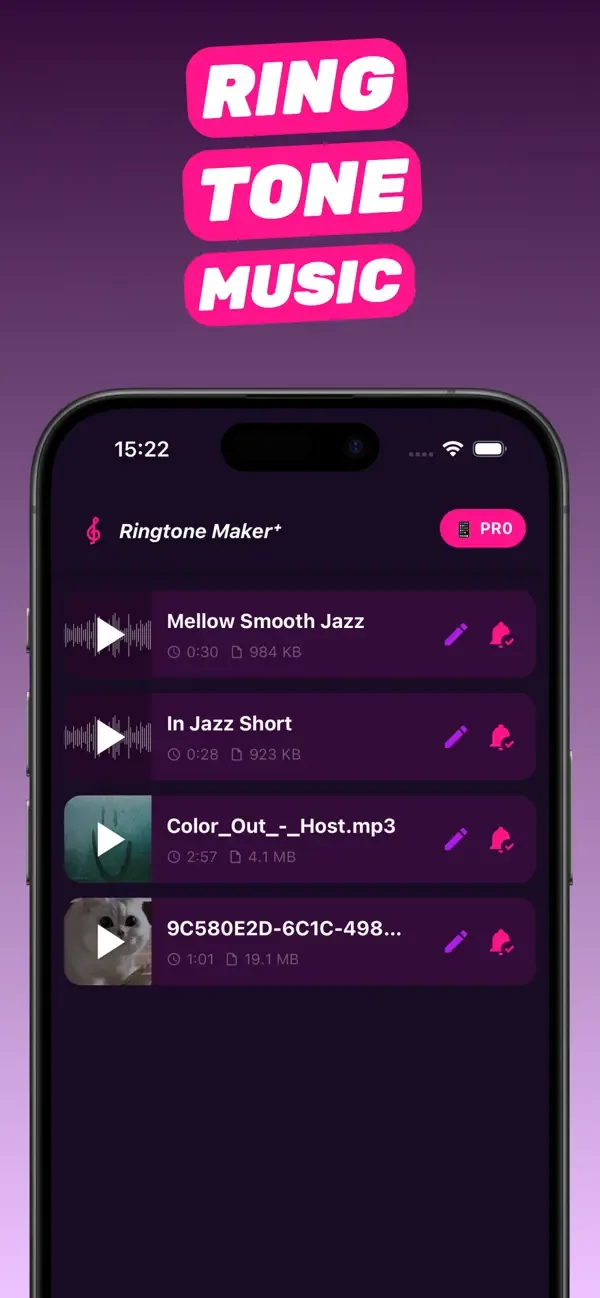
RingTon101 is built around this: it does everything GarageBand is bad at (browsing your library, extracting audio from video, a waveform trimmer with a 30-second guard, volume boost up to 7×, fades, saved projects) and then hands the finished clip to GarageBand for the one thing it must do.
The easy way: RingTon101 + GarageBand (3 taps in GarageBand)
-
Trim in RingTon101
Import a song, video or voice memo, drag the handles to the 30 seconds you want, raise Boost Volume if needed.
-
Tap Ringtone → Download
RingTon101 renders the clip in ringtone format and opens it in GarageBand as a ready project.
-
Share → Ringtone → Export
In GarageBand tap the Share icon, choose Ringtone, name it and tap Export. Pick Standard Ringtone, Standard Text Tone or Assign to contact.
The manual way: GarageBand only
If you'd rather use GarageBand alone, here is the full process. Expect 10–15 taps and a little fiddling with the timeline.
-
Create a new project
Open GarageBand → + → Audio Recorder (any instrument works). Tap the Tracks view button (the brick-wall icon) to see the timeline.
-
Turn off the metronome
Tap the metronome icon so it's grey, or your ringtone will have a click track in it.
-
Open the loop browser
Tap the loop icon (top right) → Files → Browse items from the Files app → choose your song. It can't be an Apple Music track.
-
Drag it into the track
Long-press the song in the list and drag it onto the timeline at bar 1.
-
Extend the project length
Tap + at the right end of the ruler → Section A → set it to Automatic so the whole song fits.
-
Trim the region
Tap the audio region, then drag its left and right edges to the part you want. There's no seconds readout, so tap play often. Keep it under 30 seconds (about 15 bars at 120 BPM).
-
Move it to the start
Drag the trimmed region so it starts at bar 1; otherwise your ringtone begins with silence.
-
Go back to My Songs
Tap the down arrow → My Songs. Your project appears as My Song.
-
Share → Ringtone
Long-press the project → Share → Ringtone → name it → Export.
-
Choose where to use it
Pick Standard Ringtone, Standard Text Tone or Assign to contact, or tap Done and choose it later in Settings → Sounds & Haptics.
Manual GarageBand vs. RingTon101 + GarageBand
| GarageBand only | RingTon101 + GarageBand | |
|---|---|---|
| Taps in GarageBand | 10–15 | 3 |
| Trimming | Bar-based timeline, no seconds | Waveform with a 30 s guard and preview |
| Video sources | No | Yes, audio extracted automatically |
| Volume boost | Track fader only | Up to 7× plus fades |
| Re-editing later | Reopen the project, redo the region | Every tone saved as a project |
Troubleshooting GarageBand exports
"Ringtone" isn't in the Share menu
You're sharing from inside the project. Go back to My Songs and long-press the project tile, or share the file RingTon101 handed over.
GarageBand says the ringtone is too long
Tap Cancel, shorten the region to under 30 seconds and export again. With RingTon101 the trimmer prevents this.
The exported tone is silent or cut off
The region probably started after bar 1 or the project length was shorter than the region. Set the section length to Automatic and move the region to the start.
Questions people also ask
Do I have to use GarageBand to make a ringtone on iPhone?
GarageBand is the official way to install a custom tone (iOS 26 adds Use as Ringtone for clips already under 30 seconds). You don't have to do the trimming there — RingTon101 handles that and hands the clip to GarageBand for a three-tap export.
Is GarageBand free?
Yes. It's made by Apple and free on the App Store. It's about 1.7 GB, so download it on Wi-Fi.
Why is my GarageBand ringtone silent at the start?
The audio region doesn't start at bar 1. Drag it to the beginning of the timeline before exporting.
Can GarageBand make a ringtone from a video?
Not directly — it imports audio files only. RingTon101 extracts the audio from a video and then opens it in GarageBand.
Can I delete GarageBand after exporting?
Yes. Installed ringtones stay on the phone even if you remove GarageBand.

Do it on your iPhone now
RingTon101 is free on the App Store. Import, trim, boost and set your tone in about a minute — no computer needed.
 Scan with your iPhone camera
- Free download
- Made for iPhone
- iOS 18.6+
- No account required