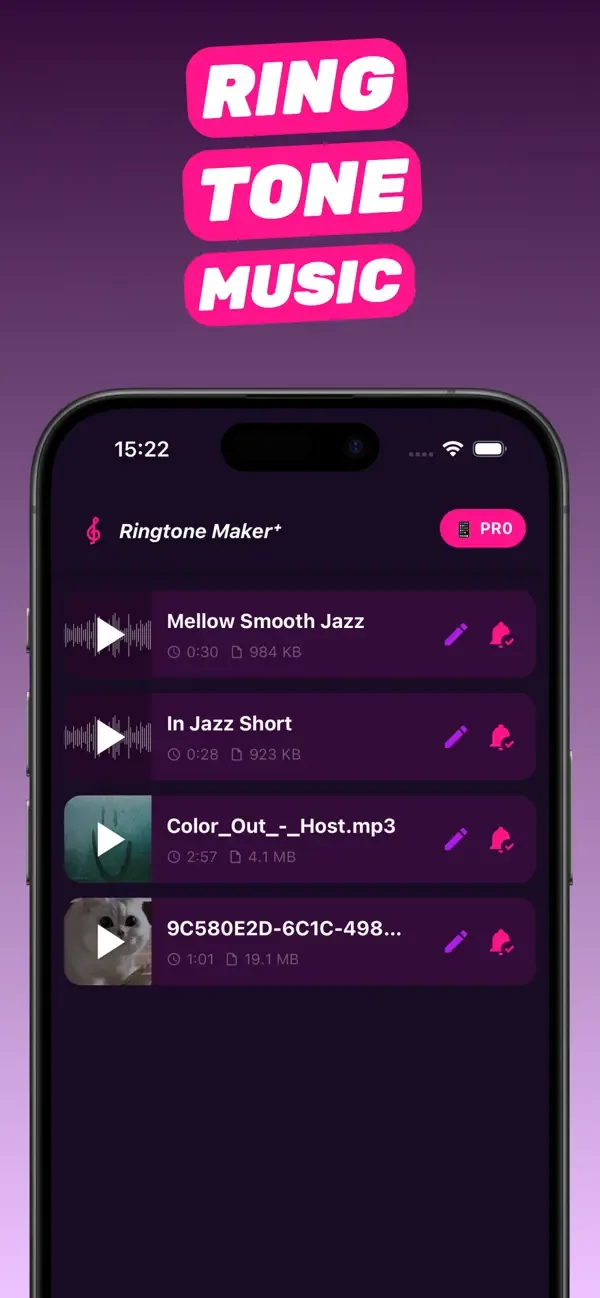
No computer
How to add a custom ringtone to iPhone without iTunes or a computer
You no longer need iTunes, Finder, a Mac or a Windows PC to put a custom ringtone on an iPhone. Everything can happen on the phone: import the audio, trim it to 30 seconds, export it as a tone and pick it in Settings. This guide walks through the on-phone method with RingTon101, explains what iOS 26 changed, and covers the cases people get stuck on — songs that are on a computer, Apple Music tracks, and tones that don't show up.
Updated · Published
Install RingTon101 (free) → import the song, video or recording → trim ≤ 30 s → Ringtone → Download → GarageBand Share → Ringtone → Export → Settings → Sounds & Haptics → Ringtone. No cable, no sync.
Why the iTunes method is obsolete
The classic method — convert to AAC in iTunes, rename .m4a to .m4r, drag the file onto the phone in iTunes or Finder — still works, but it needs a computer, a cable, and a version of iTunes/Finder that behaves. It also breaks in odd ways (tones that sync but don't appear, tones that vanish after a restore). Since iOS 13 GarageBand can install tones directly on the phone, and since iOS 26 Files can too for short clips. There's no reason to plug in.
Step by step on the phone
-
Get RingTon101 and GarageBand
Both are free on the App Store. RingTon101 needs iOS 18.6 or later; GarageBand is Apple's app and is used for the final export.
-
Get the audio onto the phone
Music you bought on iTunes is already in the Music app. MP3s can be AirDropped from a computer or downloaded from iCloud Drive / Dropbox / Google Drive into Files. Videos and screen recordings live in Photos. Voice memos are in Voice Memos.
-
Import and trim in RingTon101
Open the app, import the file, and drag the yellow handles to the best 30 seconds (or a 2–10 second clip for a text tone). Raise Boost Volume if the source is quiet.
-
Export as Ringtone
Tap Ringtone → Download. The clip opens in GarageBand in the right format.
-
Export from GarageBand
Tap Share → Ringtone → Export. Choose Standard Ringtone, Standard Text Tone or Assign to contact.
-
Select it
Settings → Sounds & Haptics → Ringtone (or Text Tone). Your tone is at the top of the list.
What iOS 26 added (and its limits)
On iOS 26, an audio file in Files or Voice Memos has a share-sheet option called Use as Ringtone. It's a great shortcut when the file is already an MP3 or M4A under 30 seconds — no GarageBand needed. It doesn't trim, doesn't boost, doesn't accept video and doesn't work with Apple Music tracks. So the practical workflow is: trim and boost in RingTon101, then either finish in GarageBand or save the clip to Files and use Use as Ringtone. Both are computer-free.
My song is on my computer — how do I get it over without iTunes?
- AirDrop (Mac → iPhone): drag the file onto the iPhone in the Finder sidebar's AirDrop, or right-click → Share → AirDrop. It lands in Files.
- Cloud drive (any computer): put the MP3 in iCloud Drive, Dropbox or Google Drive, then open it in the Files app on the iPhone and download it.
- Email it to yourself and tap Share → Save to Files on the phone.
- Messages / WhatsApp from another phone: open the audio → Share → Save to Files.
Apple Music and Spotify songs
Streaming tracks are DRM-protected and can't be turned into ringtones by any app or by iOS 26's built-in option — with or without a computer. Buy the song on the iTunes Store (a DRM-free AAC lands in your library), or use an MP3 you own or the audio from a saved video. See the song guide for details.
Troubleshooting
The tone doesn't appear in Settings
The GarageBand export wasn't completed, or the clip was longer than 30 seconds. Re-open the project in RingTon101, check the length, export again.
I don't want to install GarageBand (it's 1.7 GB)
On iOS 26, export the trimmed clip from RingTon101 with the Song format, save it to Files, then long-press it → Share → Use as Ringtone.
The old iTunes tones disappeared after I switched phones
Synced tones don't always transfer. Re-create them on the phone with RingTon101 — projects are saved so you can re-export in seconds.
Questions people also ask
Can I add a custom ringtone to iPhone without iTunes?
Yes. Use RingTon101 to import and trim the audio on the phone, then export it through GarageBand (or, on iOS 26, Files → Use as Ringtone). No computer is needed.
Do I need a Mac to make an iPhone ringtone?
No. Every step — importing, trimming, exporting and setting the tone — runs on the iPhone.
Can I make a custom ringtone without GarageBand?
On iOS 26, yes: a clip under 30 seconds saved to Files can be set with Use as Ringtone. On iOS 18.6, GarageBand's three-tap export is the way; RingTon101 prepares the clip for it.
Is there a way to do it without any app?
Only on iOS 26 and only for audio files that are already under 30 seconds. For trimming, video sources or volume boost you need an app.
Will iTunes delete my custom ringtones if I sync later?
Tones installed on the phone through GarageBand aren't managed by iTunes, so a later sync won't remove them.

Do it on your iPhone now
RingTon101 is free on the App Store. Import, trim, boost and set your tone in about a minute — no computer needed.
 Scan with your iPhone camera
- Free download
- Made for iPhone
- iOS 18.6+
- No account required